Fixing Performance Issues in Tinypic - Part 1: Diagnosing Browser Bottlenecks
Earlier this year, I wrote about building Tinypic — an in-browser image compressor designed to give users fast, privacy-first compression without ever uploading an image to an external server.
By leveraging native browser primitives — the HTML5 canvas element, createImageBitmap, and client-side WebP encoding — Tinypic processes everything on the user device.
The architecture worked smoothly for casual use (compressing 3 to 5 images at a time). But as soon as users began batch-compressing entire albums — dropping 300+ images totaling over 240 MB into the browser window — the application encountered severe performance cliffs:
- CPU usage spiked and remained pinned at 99.3%.
- The DOM ballooned past 14,000 nodes, triggering heavy style recalculation penalties.
- The JavaScript heap experienced continuous Garbage Collection (GC) thrashing, jumping over 6.5x in memory.
- After processing finished, memory remained trapped on a 90.5 MB plateau without being reclaimed.
- Eventually, Chrome's internal Resource Coordinator intervened with a proactive warning dialog: "Fix the Tab Slowing Your Browser".
This post is Part 1 of a two-part series. In this first part, we perform an exhaustive, technical autopsy of what happens inside Chrome when hundreds of images are pushed through a client-side processing pipeline. In Part 2, we will cover the architectural solutions: Web Workers with OffscreenCanvas, virtualized DOM rendering, and bounded concurrency queues.
1. The Hidden Physics of Browser Image Memory
To diagnose why the browser struggled, we first have to understand the fundamental difference between compressed file size on disk and uncompressed pixel buffers in memory.
When you download or store a 5 MB JPEG from a modern smartphone, that file is stored using lossy frequency-domain compression (Discrete Cosine Transform). But the browser layout and canvas rendering engines cannot draw or process compressed bytes directly.
To draw an image to a canvas or process it with createImageBitmap, the browser decoding engine (Blink / Skia) must unpack every single pixel into an uncompressed 32-bit RGBA bitmap buffer (8 bits per channel: Red, Green, Blue, Alpha).
Let us look at the memory equation for a modern 48-megapixel camera photo:
A single 5 MB JPEG file from a modern camera consumes nearly 200 MB of raw RAM the moment it is decoded into a bitmap buffer.
When a user drops 300+ images (averaging 750 KB to 2 MB each), even modest-resolution images (1,600 × 1,200 px) demand 7.6 MB of decoded buffer memory each. Across 300 images, that represents over 2.2 GB of raw pixel memory that must cycle through the browser process.
Furthermore, desktop browsers enforce tight process boundaries:
- Renderer Tab Budget: A 64-bit Chrome renderer tab will typically begin severe throttling or outright crash ("Aw, Snap! Out of Memory") when approaching 1.5 GB to 2.5 GB of combined process memory.
- Mobile WebKit (iOS Safari): Enforces an aggressive ceiling between 256 MB and 500 MB total tab memory before killing the WebKit process and reloading the page.
With these constraints in mind, let us analyze the three distinct phases of a 300-image batch compression using Chrome DevTools Performance Monitor.
2. Phase 1: Ingestion and the 10,000-Node DOM Explosion
When the user selects 314 images, the application immediately updates its central React state array:
This single state update created our first major architectural bottleneck: DOM bloat.
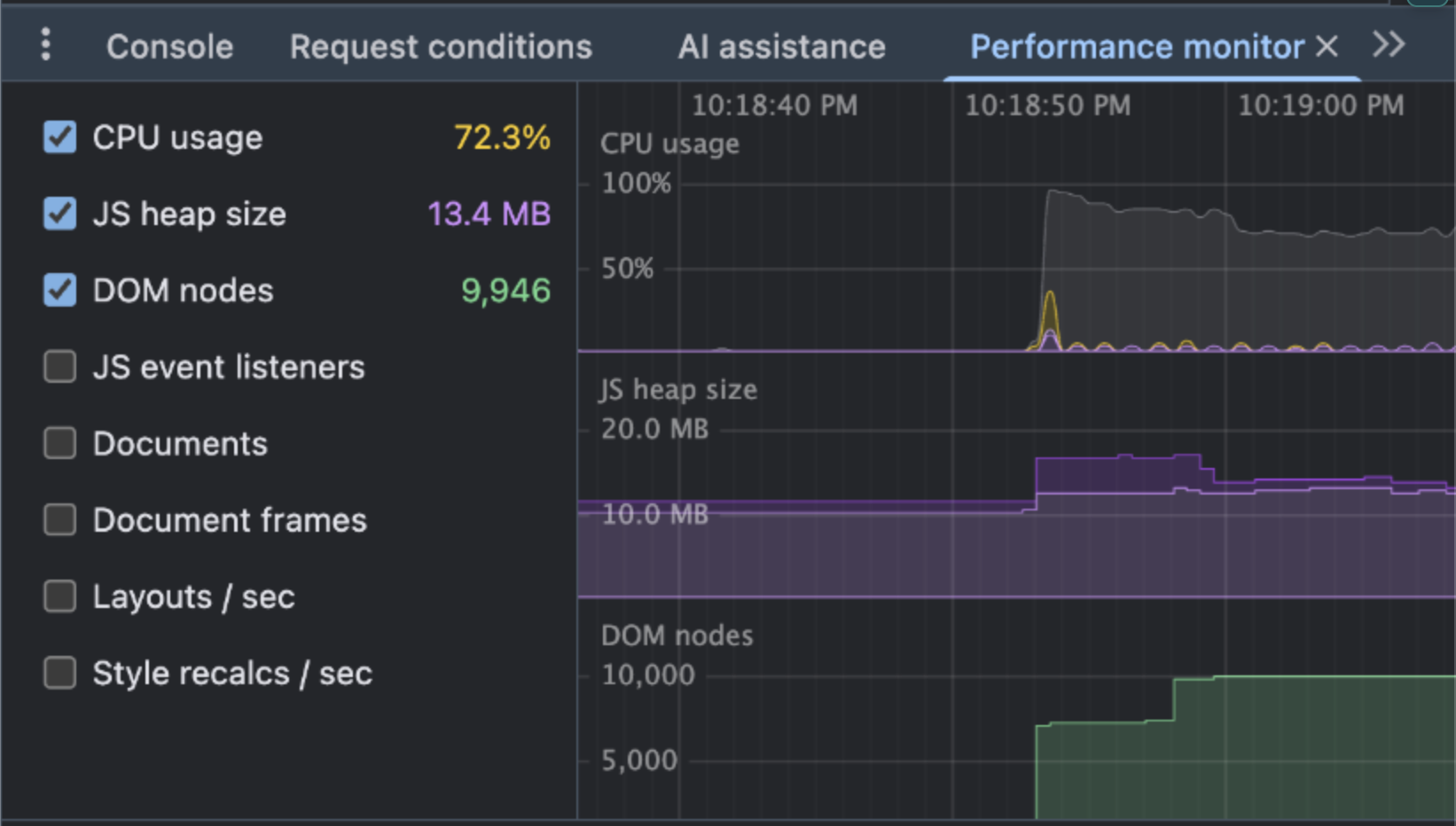
Looking at the Performance Monitor during initial ingestion:
- DOM Nodes jumped from ~200 to 9,946 in a single render pass.
- CPU spiked instantly to 72.3%, before a single image had even begun compression.
- JS Heap rose to 13.4 MB.
Explicitly Why Did the DOM Explode to 10,000 Nodes?
To understand how 314 files produced nearly 10,000 nodes, we must trace how React renders the list in CompressionList.jsx:
Four explicit mechanics caused this explosion:
1. The Multiplier Effect: ~32 Real DOM Nodes Per Card
Developers often forget that a single React JSX component is not a single HTML element. Each item in our list expands into a deep subtree of real DOM elements:
- Outer Card container (HTML div element)
- CardContent wrapper (HTML div element)
- Flex layout row container (HTML div element)
- Thumbnail wrapper (HTML div element)
- FileImage Lucide SVG icon (SVG element plus its internal path, rect, and circle vector elements)
- Text column wrapper (HTML div element)
- Filename header paragraph (HTML p element)
- Metadata horizontal flex row (HTML div element)
- Original file size badge (HTML span element)
- Directional arrow indicator (HTML span element)
- Compression status / percentage label (HTML span element)
- Action button container (HTML div element)
- Radix UI Button slot (HTML button or anchor element)
- Action icon SVG (SVG element plus child vector paths) or animated loading spinner (HTML span element)
When all nested wrappers, text nodes, and SVG paths are counted, each single image card introduces ~31 to 32 real HTML/SVG DOM nodes.
2. Zero Virtualization (Unwindowed Flat Rendering)
The application mapped the entire 314-item array directly into the DOM tree.
In a modern web app, a user viewport can only display roughly 6 to 10 image cards on screen at any given moment. Without DOM virtualization (windowing), the browser was forced to construct and mount the remaining 300+ off-screen cards into the live document tree, wasting memory on elements that the user could not even see.
3. Synchronous Mounting and the 72.3% CPU Spike
When setItems was called with 314 items, React committed the entire fiber tree synchronously in a single execution frame. This hit the browser main thread with a massive four-stage pipeline:
- Fiber Construction: React allocated 314 component fiber subtrees and reconciled their virtual DOM trees.
- DOM Injection: The browser executed roughly 10,000 consecutive native document.createElement and appendChild calls.
- Blink Style Recalculation: The browser styling engine had to match CSS selectors and resolve Tailwind utility classes across 10,000 newly inserted nodes.
- Layout and Geometry Reflow: The layout engine (Blink) had to calculate bounding boxes, margins, and flexbox dimensions for 314 stacked flex containers.
This heavy four-stage layout storm explains why CPU spiked to 72.3% during initial ingestion, before image compression even began.
4. The Re-Render Multiplier
To make matters worse, as each of the 314 images finished compressing in Phase 2, the app dispatched a state update:
Because the list was unvirtualized and keyed by array index, every single completed image triggered a top-to-bottom re-evaluation across the entire 10,000-node DOM tree. Across 314 images, that resulted in 314 virtual DOM diffing passes across 10,000 nodes, completely overwhelming the UI thread.
3. Phase 2: Peak Processing, 99.3% CPU, and GC Thrashing
Once the files entered the processing pipeline, the compression engine executed:
During this peak phase, the Performance Monitor captured total main-thread exhaustion:
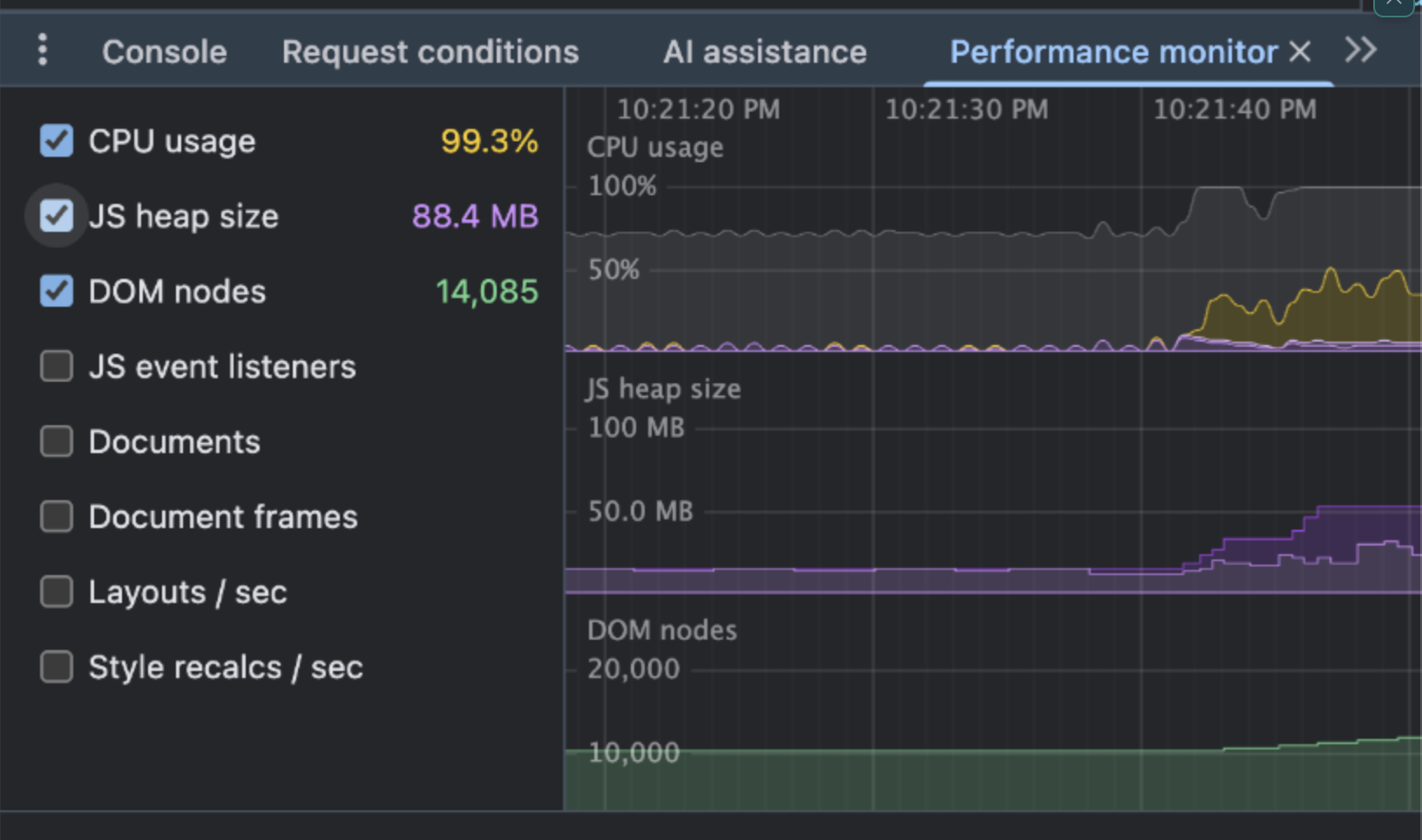
Examining the metrics during peak execution:
- CPU Usage: Pinned at 99.3%.
- JS Heap: Surged from 13.4 MB to 88.4 MB (a 6.5x increase).
- DOM Nodes: Continued climbing to 14,085 nodes.
- Garbage Collector Thrashing: Distinct saw-tooth wave pattern on the JS heap graph.
Root Cause A: Event Loop Starvation via Unbounded Concurrency
The code used Promise.allSettled to launch all 314 compression operations simultaneously.
Because JavaScript in the browser is single-threaded, Promise.allSettled does not run tasks in true parallel threads. Instead, it floods the single-threaded V8 event loop with hundreds of competing asynchronous micro-tasks and canvas drawing calls.
Inside compressImage, the pipeline executed an aggressive while loop:
Because this loop aimed for an aggressive 80% file size reduction, nearly every image executed 6 to 9 iterative encoding passes.
The V8 event loop was completely saturated. Browser frame deadlines (16.6 ms for 60 FPS) were blown past, resulting in 0 FPS rendering frames, frozen spinners, and severe Input Delay (INP).
Root Cause B: Garbage Collection (GC) Thrashing
Notice the purple jagged saw-tooth line in the middle graph of the peak screenshot.
Those sharp upward slopes followed by immediate drops represent V8 Major GC (Mark-Sweep-Compact) and Scavenger cycles.
As thousands of intermediate Blob instances and temporary canvas contexts were allocated and discarded in rapid succession, the V8 memory allocator was forced to repeatedly pause execution to collect young-generation memory. However, because new images kept arriving faster than the garbage collector could reclaim dead objects, the baseline heap drifted steadily upwards from 13.4 MB to 88.4 MB.
4. Phase 3: The Aftermath and Memory Traps
Eventually, all 314 images finished compressing. The system returned to what appeared to be an idle state:
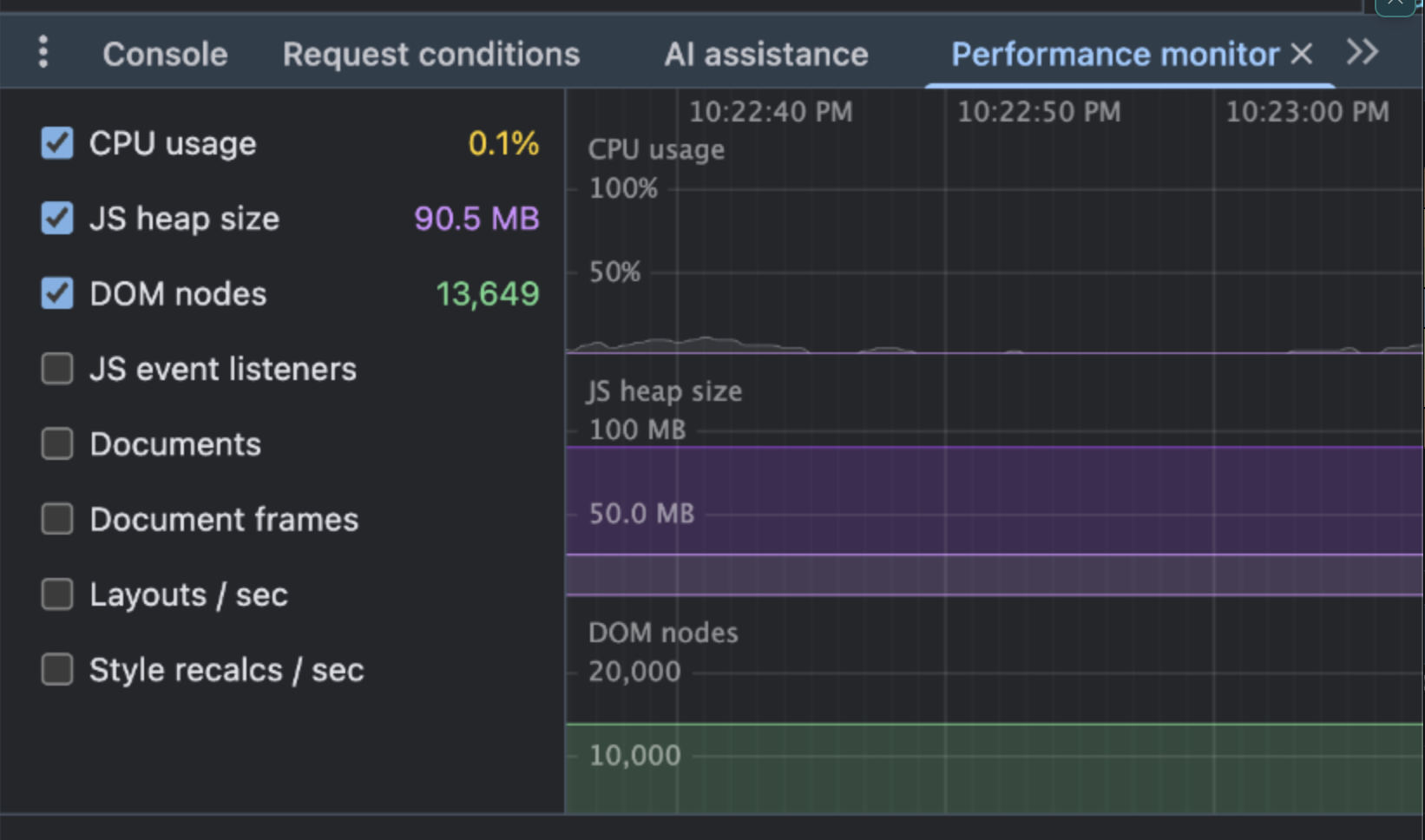
The monitor reveals a stark contrast:
- CPU Usage: Dropped immediately to 0.1% (idle).
- JS Heap: Remained flatlined at 90.5 MB.
- DOM Nodes: Remained trapped at 13,649 nodes.
Trap 1: The Deceptive 0.1% CPU
When users finish compressing, the app feels responsive again because the CPU is at 0.1%. But this is an illusion of stability.
All 13,649 DOM elements remain mounted in the document. If the user attempts to scroll through the 314-card list, the browser compositor and GPU rasterizer must continuously compute layer rects and paint calls for nearly 14,000 nodes. On laptops on battery power or mobile devices, scrolling through this list produces immediate frame drops.
Trap 2: The 90.5 MB Memory Plateau
Why did the JS Heap not return to its initial 13.4 MB baseline once work completed?
- State Retention: React maintains references to the entire array of 314 objects. Each item holds references to the original File handle, the newly generated Blob, and calculated metadata.
- Object URL Memory Leaks: Inside the list rendering component, object URLs were being generated inline on every render:
In React, invoking URL.createObjectURL inside the component render body generates a brand-new blob URI mapping inside the browser internal host environment on every single render pass.
Because URL.revokeObjectURL was never invoked, the browser was forced to retain every allocated blob pointer in memory. If the user loaded another batch of 300 images without hard-refreshing the tab, the heap would not start at 13 MB — it would start at 90 MB and scale toward crash limits.
5. The Smoking Gun: When Chrome Steps In
As if a pinned 99.3% CPU and memory thrashing were not enough, Chrome itself eventually intervened with an explicit, proactive warning:

Fix the Tab Slowing Your Browser
"This tab is using extra resources. To improve your performance, let Chrome make it inactive."
[Dismiss] [Fix This Tab]
Anatomy of Chrome's Performance Intervention
In modern versions of Chrome, the browser includes a proactive Performance Detector (managed by Chromium's Resource Coordinator).
Unlike an unhandled tab crash ("Aw, Snap! Out of Memory"), this dialog is triggered when Chrome's internal background heuristics detect that a tab is monopolizing system resources and degrading the host operating system:
- Extended Main-Thread Saturation: When a single renderer process sustains near 100% CPU utilization across dozens of seconds, it starves background OS tasks and degrades foreground responsiveness.
- Memory Footprint Thresholds: When native Blink canvas backing stores, unclosed bitmap textures, and the V8 heap climb beyond acceptable limits, Chrome flags the tab as a severe performance hazard.
- The Discard Penalty: If the user clicks "Fix This Tab", Chrome immediately discards (terminates the renderer process for) the tab. For a user who just spent minutes waiting for 300 photos to compress, their entire session and all compressed outputs are instantly discarded.
This dialog represents the ultimate proof of an architectural bottleneck: the browser itself actively warning the user that our web application is degrading their machine.
6. Summary of Diagnosed Bottlenecks
- DOM Bloat (14,085 nodes): Flat rendering of 314 multi-element cards caused expensive style recalculations and continuous virtual DOM reconciliation overhead across 314 sequential state dispatches.
- Main-Thread Saturation (99.3% CPU): Over 2,500 iterative WebP encoding operations ran directly on the UI thread, blocking the event loop and inducing 0 FPS frame drops.
- Unbounded Memory Allocation (13 MB to 90.5 MB): Unchecked parallel execution created simultaneous canvas buffers, triggering heavy V8 Garbage Collection thrashing.
- Resource Retention (90.5 MB Plateau): Inline Object URL generation without explicit revocation, combined with unclosed ImageBitmap handles, produced persistent memory retention after batch completion.
- System-Level Resource Flagging: Chrome Resource Coordinator triggered proactive intervention modals to discard the tab due to excessive resource monopolization.
Coming Up in Part 2: The Architectural Fixes
Now that we have isolated the exact mechanical failure points, Part 2 will dive deep into how we completely re-engineered Tinypic's architecture:
- True Multithreading with Web Workers and OffscreenCanvas: Moving 100% of image decoding and WebP encoding off the UI thread to keep the main thread at a smooth 60 FPS.
- Bounded Concurrency Queues: Replacing unbounded Promise pipelines with a worker pool (concurrency = 2) to maintain a flat memory profile regardless of batch size.
- DOM Virtualization: Windowing the card list so that only visible cards (~15 cards, under 200 DOM nodes) exist in the document tree.
- Deterministic Resource Cleanup: Integrating explicit ImageBitmap.close() disposal and structured URL.revokeObjectURL lifecycle management.
Stay tuned for Part 2!